Transform Your Note-Taking: A Step-by-Step Guide to Obsidian's Best Plugins
Introduction
Obsidian has become my go-to note-taking app because it strikes a perfect balance between simplicity and power. The core features—linking notes, graph view, and markdown editing—are fantastic for organizing thoughts. But what truly elevates Obsidian is its plugin ecosystem. When I first started exploring plugins, I was amazed at how they could transform a simple notebook into a fully-fledged knowledge management system. In this guide, I'll take you through six essential plugins that made me never want to use another note-taking app again. By the end, you'll have a personalized toolkit that boosts productivity, creativity, and memory.
What You Need
- Obsidian (free version works great; install from obsidian.md)
- Basic knowledge of markdown (headings, links, lists)
- Internet connection to download plugins from the Community Plugins store
- Patience to experiment – each plugin has settings you can tweak
Step-by-Step Guide
Step 1: Install and Configure Dataview
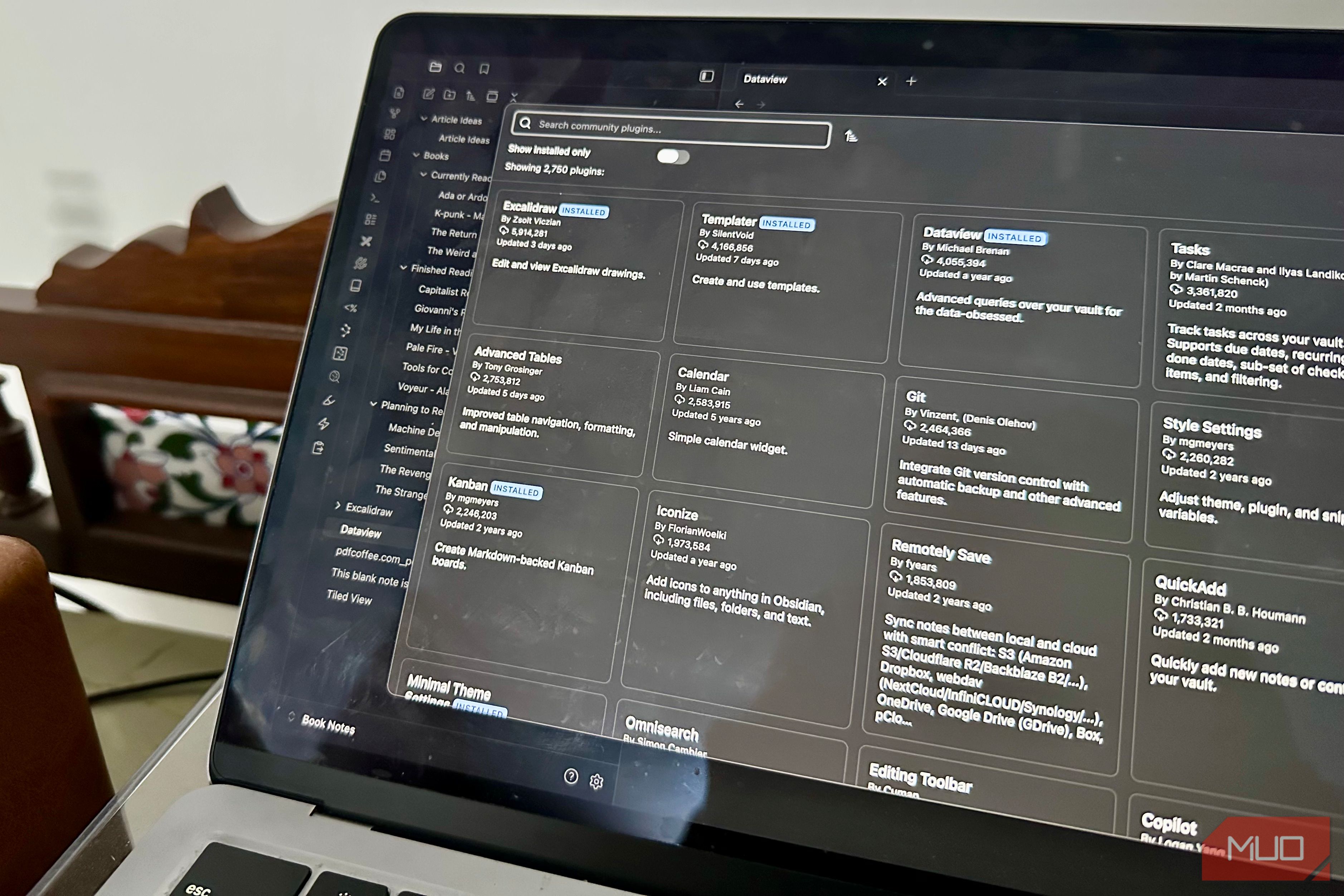
Dataview is a query engine that treats your notes as a database. It lets you filter, sort, and display information from multiple notes using simple queries. Start by navigating to Settings → Community Plugins → Browse, search for "Dataview", and install it. Enable it, then restart Obsidian.
Next, create a note with a frontmatter section (YAML metadata) like ---
type: book
author: John
rating: 4
---. Then, in another note, write a query such as ```dataview
LIST FROM "books"
WHERE rating > 3
SORT rating DESC
```. This will dynamically list all books with a rating above 3. Use Dataview for daily journal summaries, project trackers, or content inventories.
Step 2: Enhance Organization with Kanban
The Kanban plugin turns any note into a visual board with columns and cards. Perfect for project management, task tracking, or writing pipelines. Install it via Community Plugins (search "Kanban"). Once enabled, open a new note and change its view to "Kanban" via the command palette (Ctrl+P).
Start adding columns like "To Do", "In Progress", "Done". Drag cards between columns. Each card is a markdown note, so you can embed links, checklists, or even Dataview queries directly. This plugin replaces tools like Trello without leaving Obsidian.
Step 3: Master Time Management with Calendar
The Calendar plugin adds a graphical calendar to Obsidian's sidebar. Click on a date to open or create that day's note. It's ideal for daily logs, habit tracking, and planning. Install from Community Plugins, then enable it. A calendar icon appears on the left ribbon—click it to show the calendar.
To make the most of it, create a template for daily notes (use the Templater plugin later). For now, you can manually link your daily notes under a journal folder. The Calendar plugin also shows dots on days that have existing notes, so you can quickly navigate your timeline.
Step 4: Visualize Ideas with Excalidraw
Excalidraw lets you create hand-drawn-style diagrams and sketches directly inside Obsidian. Perfect for mind maps, flowcharts, or wireframes. Install it just like the others, then open a new note and use the command palette to insert an Excalidraw drawing.
You can draw shapes, arrows, add text, and embed images. Every drawing is saved as a note in your vault. Link other notes to specific elements using square brackets. This plugin turns Obsidian into a visual thinking tool, complementing your text-based notes.
Step 5: Supercharge Daily Workflow with Templater
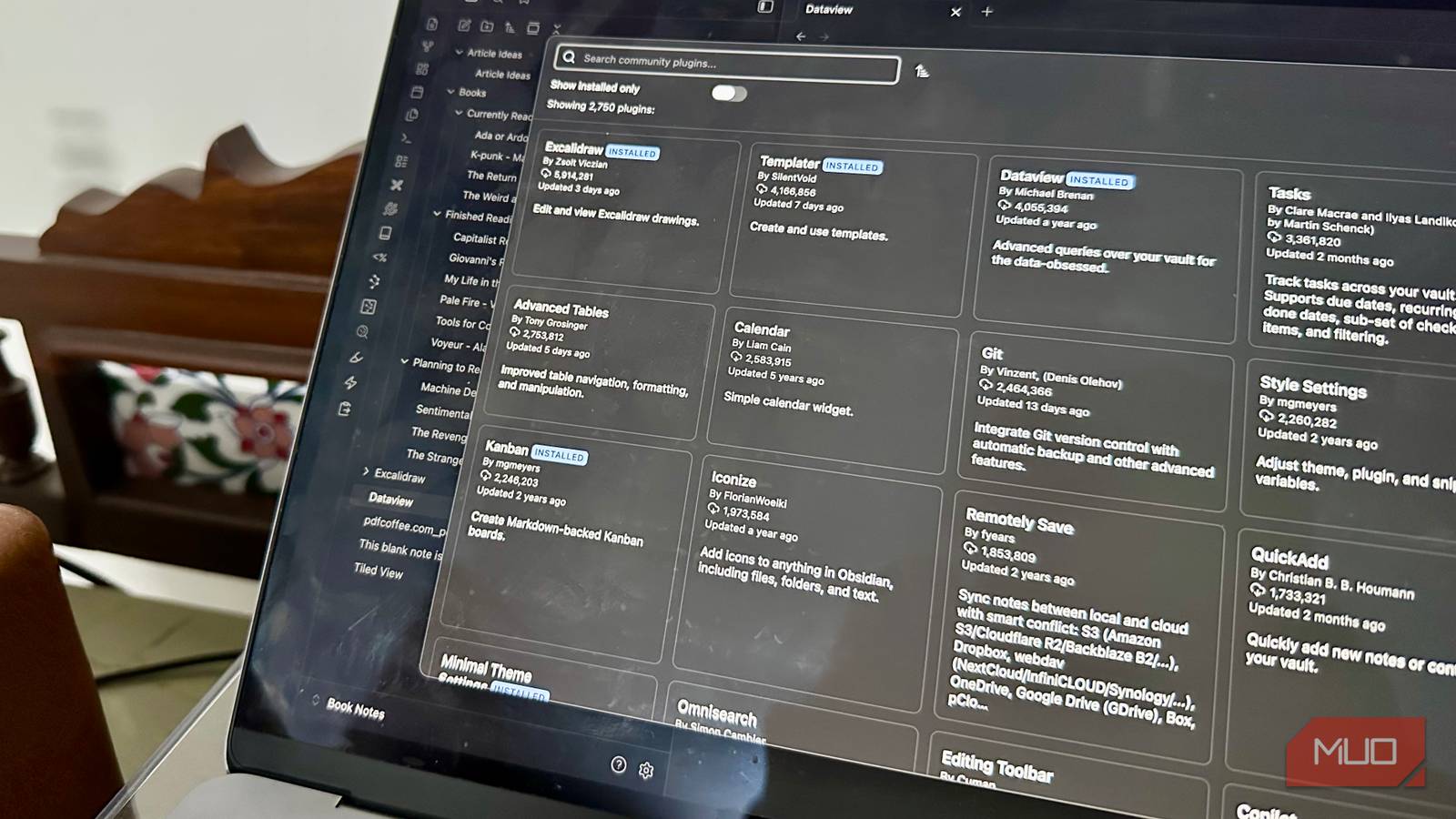
Templater goes beyond basic templates. It can insert dynamic content like dates, file titles, or even run JavaScript. Install it, then create a folder called "Templates". Create a new template note, for example a daily page with headings, a task list, and a weather placeholder using <% tp.date.now("YYYY-MM-DD") %> and <% tp.web.weather() %>.
To use it, open a new note and run the command "Templater: Insert Template". Alternatively, set Obsidian to automatically insert a template when creating notes in a specific folder. This saves hours of repetitive formatting and ensures consistency across your vault.
Step 6: Uncover Connections with Graph Analysis
While Obsidian has a built-in graph view, the Graph Analysis plugin adds extra filters, grouping, and insights. Install it from Community Plugins. Once enabled, open the graph view (click the icon in the left ribbon). You'll see new options in the graph panel to filter by tags, link count, or date created.
Use this to find orphan notes (notes with no links) or to visualize the strength of connections. For example, filter to show only notes created in the last month. This plugin helps you tidy your vault and spot clusters of related ideas you might have missed.
Tips & Best Practices
- Start small – install only one plugin at a time and learn it before adding more. Overwhelming your vault can lead to confusion.
- Combine plugins – for example, use Templater to create a daily note template that automatically fetches tasks from a Kanban board using Dataview queries.
- Back up your vault – regularly export your Obsidian folder or use a version control tool like Git. Plugins can sometimes break after updates.
- Check for conflicts – some plugins may interfere with each other. If something behaves oddly, disable plugins one by one to find the culprit.
- Explore the community – Obsidian's forum and Discord are full of templates and workflow ideas. Don't hesitate to borrow and adapt.
- Remember the core – plugins enhance, but the fundamental power of Obsidian lies in linking and connecting ideas. Keep your notes flexible and interconnected.
By following these steps, you'll transform Obsidian from a simple note-taking app into a personalized knowledge hub. The six plugins here are just the beginning—there are hundreds more to discover. The key is to choose those that align with your workflow and discard the rest. Happy note-taking!
Related Articles
- Terminal Troubles: Unpacking User Frustrations from a Community Survey
- Building Smarter AI Systems: A Practical Guide to the Probabilistic Paradigm Shift
- How to Build a Whole-Body Conditioned Egocentric Video Prediction System for Embodied Agents
- JetBrains Reveals How 'Dogfooding' Transforms Developer Tools — From Internal Pain to Premium Products
- The Hidden Security Gap: Why Your OAuth Tokens Are a Backdoor for Attackers
- Birdfy Smart Feeders Hit Record-Low Prices Ahead of Mother’s Day – 4K Model Discounted
- 8 Engineering Secrets Behind GitHub Copilot CLI's Animated ASCII Banner
- 7 Crucial Insights into Cargo's New Build Directory Layout