Mastering the 3DMakerPro Toucan: A Comprehensive Standalone 3D Scanning Tutorial
Overview
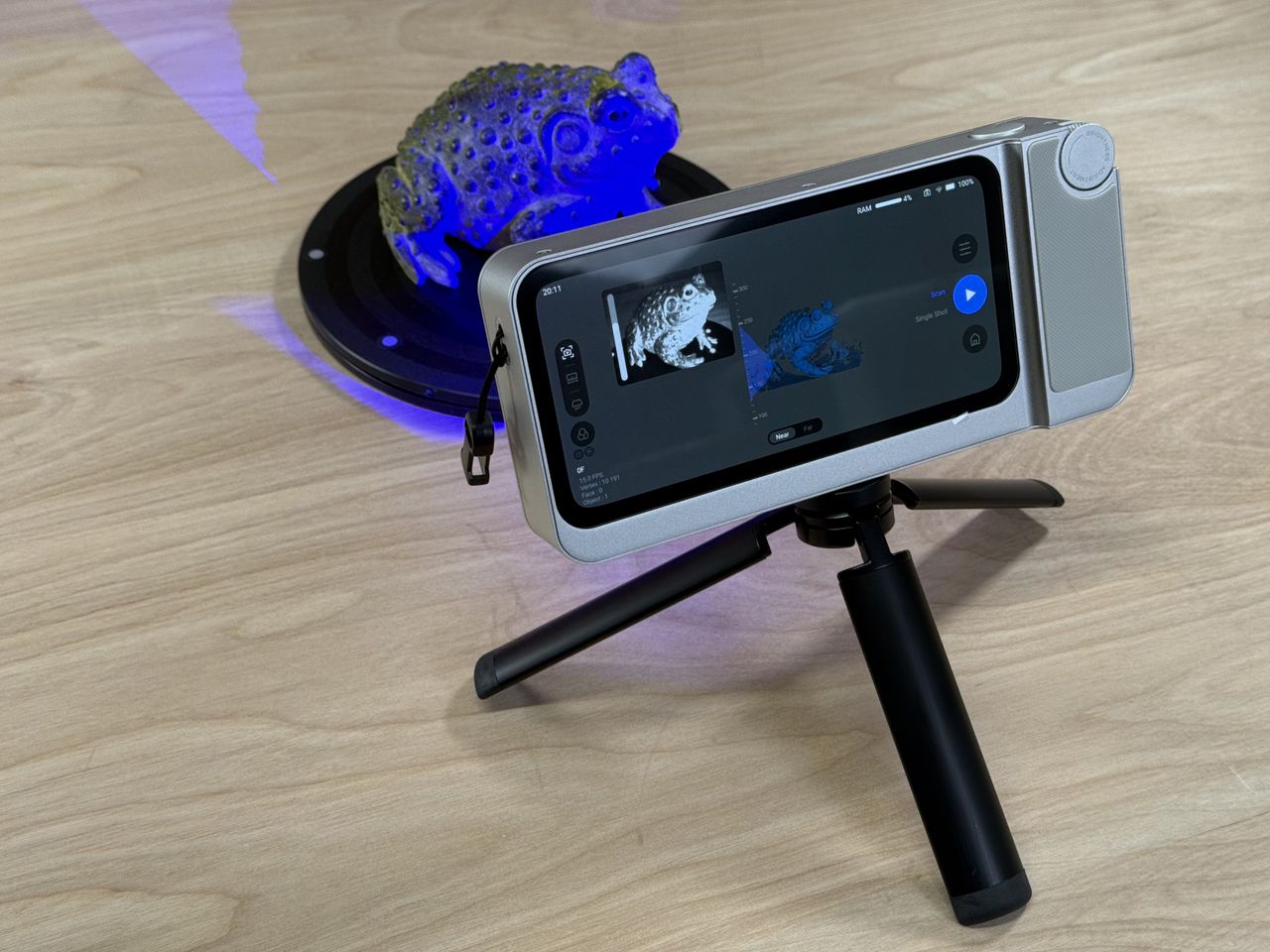
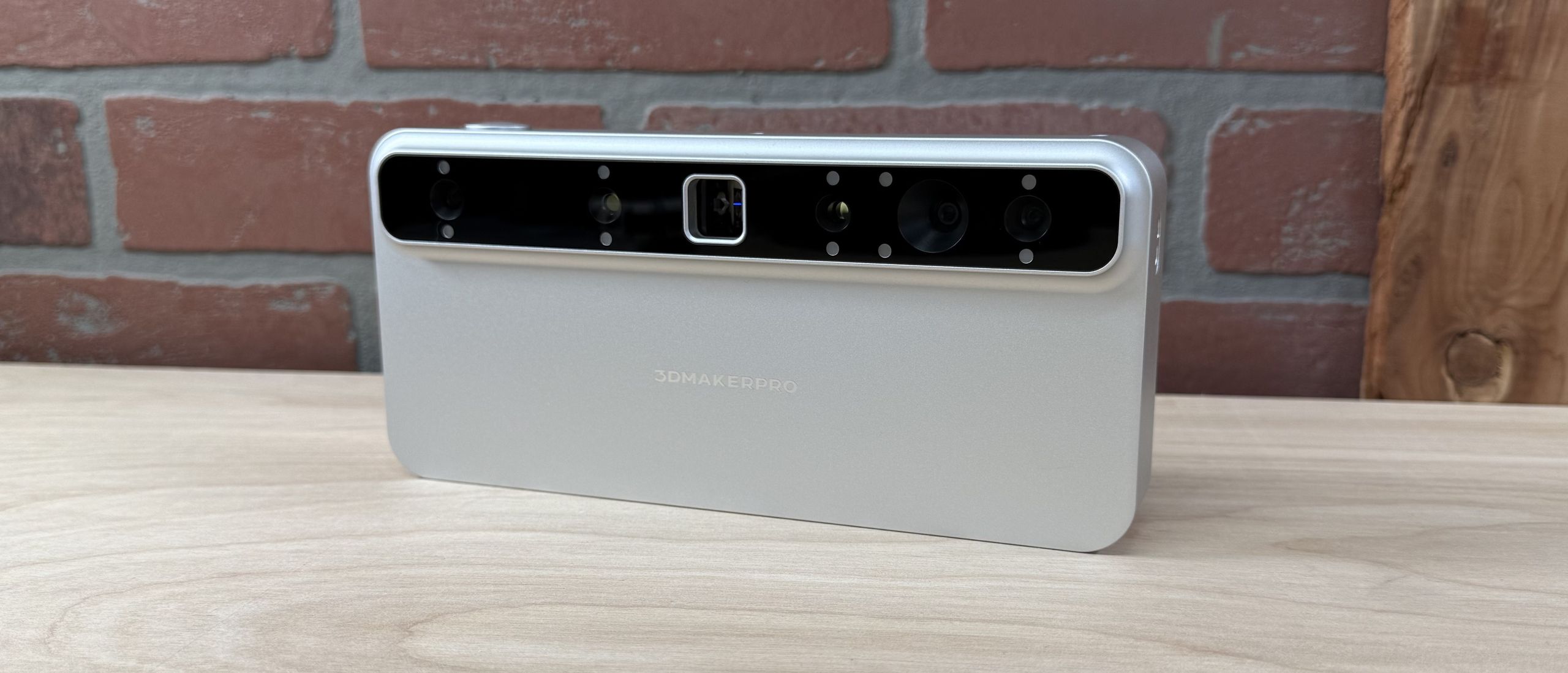
The 3DMakerPro Toucan redefines portable 3D scanning by functioning as a fully standalone device. Unlike traditional scanners that require a tethered computer for data processing, the Toucan captures point clouds, generates 3D models, and exports them—all without external software. Its premium hardware construction and Class 3R laser deliver high-resolution point clouds at impressive speeds. However, as with any cutting-edge tool, the user experience can be marred by software immaturity, intermittent tracking losses, finicky Wi-Fi exports, and occasionally blurry color textures. This tutorial will guide you through getting the most out of your Toucan, from initial setup to troubleshooting common issues.
Prerequisites
Before diving into scanning, ensure you have the following:
- 3DMakerPro Toucan Scanner (with batteries charged or connected to power)
- Object to scan – ideally with matte, non-reflective surfaces. Transparent or shiny objects may require powder spray.
- Stable, well-lit environment – though the laser works in darkness, ambient light helps with color capture.
- USB cable (for direct data transfer as a fallback to Wi-Fi)
- Turntable or rotating stand (optional but recommended for full 360° scans)
- Computer (optional, for post‑processing or if built‑in model generation is insufficient)
Step-by-Step Instructions
1. Hardware Setup
Place the Toucan on a stable surface near your object. Angle the scanner so the laser and cameras have a clear line of sight. Power on the device using the side button; the LED indicator will glow green when ready. If using a turntable, center your object and ensure the Toucan’s field of view covers the entire height.
Pro tip: For larger objects, position the Toucan on a tripod (if supported) to move around the object instead of rotating it.
2. Initiating a Standalone Scan
Press the scan button on the Toucan’s top panel to enter scanning mode. The device will begin projecting a Class 3R laser pattern. Keep the scanner or object moving slowly and steadily—rapid jerks cause tracking loss. The Toucan’s onboard processor builds a point cloud in real time. You can monitor progress on the small status display (or via the mobile app if connected).
For the best results, maintain a distance of 0.2–0.5 meters between the scanner and the object. Overlap each pass by 30% to ensure the software can stitch frames together.
3. Generating the 3D Model
Once you have captured enough point cloud data (the device will indicate “Data Sufficient” on the display), press the processing button. The Toucan will automatically convert the point cloud into a mesh model. This step may take several minutes depending on the complexity. The resulting model will have both geometry and color texture (if you enabled color capture in settings).
Note: The built-in processing is less polished than desktop software. You may notice minor holes or misalignments; these can be fixed later on a computer.
4. Exporting Your Model
The Toucan offers two export methods:
- Wi‑Fi Export: Connect to the Toucan’s Wi‑Fi hotspot from your phone or computer, then navigate to the IP address shown on the display. Download the model in STL or OBJ format. Caution: Our testing showed this method can be inconsistent—transfers may drop mid‑download. If this happens, restart the scanner and try again.
- USB Direct Export: Plug the Toucan into a computer via USB. It will appear as an external drive. Copy the model files directly. This method is more reliable and faster.
After export, you can further refine the mesh in software like Blender or MeshLab.
Common Mistakes and How to Avoid Them
Tracking Loss
Symptom: The scanner loses its position, and the point cloud jumps or stops recording.
Solution: Move the scanner (or object) slowly. Avoid sharp turns and sudden accelerations. Ensure the surface has enough distinct features—flat, textureless areas confuse the tracker. Adding a few markers (e.g., printed targets) can help.
Blurry Color Textures
Symptom: The final model has smudged, low‑resolution colors.
Solution: This is often a software issue with the Toucan’s internal processing. To mitigate, scan under bright, diffuse lighting. Avoid direct shadows. If blurriness persists, export the point cloud instead of the meshed model, and use desktop software to reconstruct the texture.
Inconsistent Wi‑Fi Exports
Symptom: Download starts but fails partway, or the Toucan becomes unresponsive.
Solution: Use USB transfer as your primary method. If you must use Wi‑Fi, ensure no other devices are connected to the Toucan’s hotspot. Reset the network module by power‑cycling the scanner. For large models, break the scan into smaller segments and export individually.
Software Quirks and Polish Issues
Symptom: Unexpected crashes, confusing menu navigation, or missing features.
Solution: Keep the Toucan’s firmware updated (check 3DMakerPro’s site). Use the factory reset option if problems persist. For now, treat the built‑in software as a convenience, not a powerhouse—plan on doing final refinements on a PC.
Summary
The 3DMakerPro Toucan is a game‑changer for on‑the‑go 3D scanning, offering unprecedented independence from computers. Its Class 3R laser and premium build provide fast, detailed point clouds. However, success depends on managing its quirks: move slowly to avoid tracking loss, rely on USB rather than Wi‑Fi for exports, and accept that textures may need desktop post‑processing. With the techniques in this guide, you’ll maximize the Toucan’s strengths and minimize its frustrations, turning it into a reliable tool for quick 3D captures.
Related Articles
- A Vendor's Guide to Supporting LVFS and Avoiding Service Restrictions
- Supreme Court Deals Blow to Voting Rights, Clears Path for Racial Redistricting
- Mastering the Art of USB Drop Attacks: A Step-by-Step Guide to Replicating a Legendary Penetration Test
- Trump Mobile's T1 Smartphone: One Year, $59 Million, Zero Devices Delivered
- 10 Key Updates in Safari Technology Preview 238 You Should Know
- Meta Unveils Open-Source AI to Revolutionize U.S. Concrete Production, Slash Reliance on Imports
- Your Step-by-Step Guide to Experiencing Waymo's Autonomous Ride-Hailing in Portland
- Philanthropist Unveils $21M Rural Guaranteed Minimum Income Initiative, Calls for National Pledge