BleachBit's TUI: 10 Essential Features of the New Text-Based Cleaner
System cleanup utilities divide opinions—some see them as must-haves, others avoid them entirely. On Linux, tools range from simple scripts to full GUI applications. Among them, BleachBit has long been a favorite for freeing up space by clearing browser caches, package archives, and temporary files. Now, its developers have unveiled an alpha text-based user interface (TUI), bringing the same powerful cleaning engine to the terminal without sacrificing functionality. I spent some time with it and found it surprisingly polished for an early release. Here are 10 things you need to know about BleachBit's new TUI.
1. What BleachBit Does and Why It Matters
BleachBit is a free, open-source system cleaner for Linux and Windows. It removes unnecessary files—browser caches, cookie remnants, package manager leftovers, log archives, and more—while offering advanced features like secure file shredding and free space wiping. The new TUI brings all these capabilities into a terminal environment, making it ideal for remote servers, minimal installations, or users who prefer keyboard-driven workflows. Its backend remains the same as the graphical version, so you can trust it to handle cleanup reliably without compromising on depth or safety.
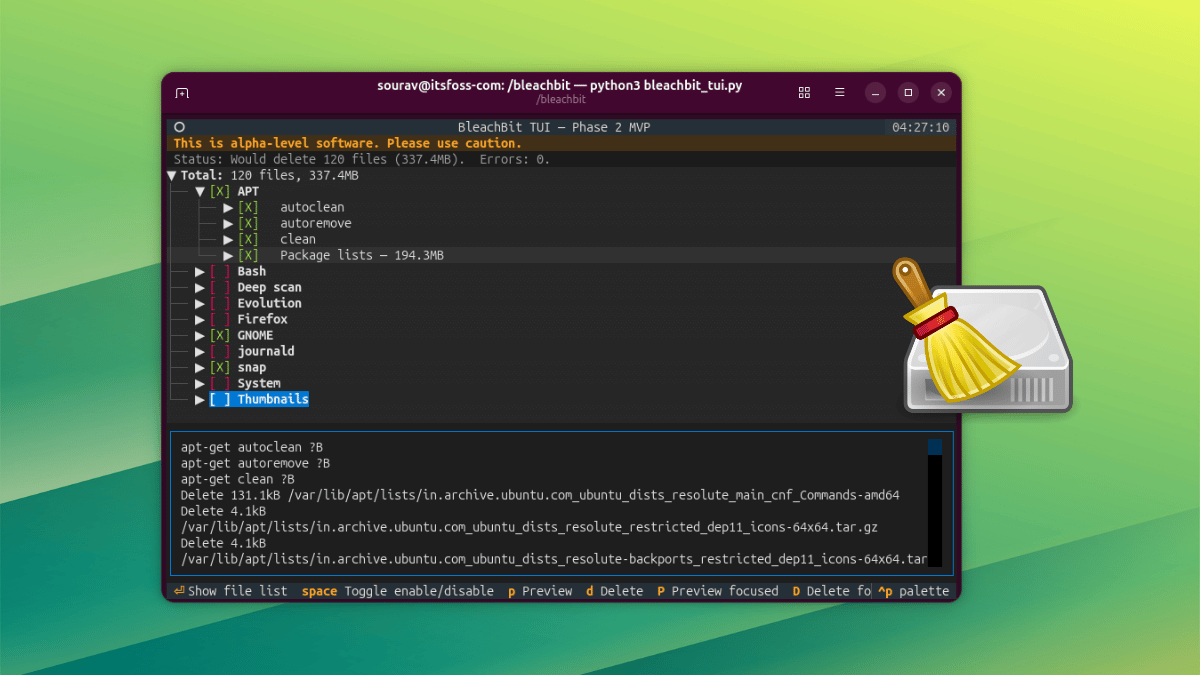
2. Why a TUI Was Worth Building
While BleachBit already had a CLI and a GUI, the TUI fills a gap. It offers a richer interactive experience than a command-line script, with menus, previews, and real-time feedback—yet it doesn't require a desktop environment. This makes it perfect for headless systems, SSH sessions, or tiling window manager setups. Developers recognized that many Linux users live in the terminal but still want a structured, visual cleanup tool. The TUI delivers exactly that: a balance between simplicity and power, without the overhead of a full graphical toolkit.
3. Navigating the TUI: Basics and Shortcuts
Once launched (python3 bleachbit_tui.py), the interface is straightforward. Use arrow keys to move through categories. Press Space to toggle a cleaning option on or off—a visual checkmark appears. Hit Enter to expand a category and inspect the individual files it targets. This drill-down view helps you understand exactly what will be cleaned before committing. The layout is clean, with color-coded sections and a status bar at the bottom showing keybindings. It feels intuitive even for first-time users.
4. Previewing Before You Clean
BleachBit provides two preview modes to avoid surprises. Press lowercase p to run a full preview across all selected items—this scans every file and shows estimated space to recover. Alternatively, press uppercase P (using Shift or Caps Lock) to preview only the currently highlighted component. This is useful for focusing on a specific category, like browser caches, without waiting for a full scan. The preview results appear on screen, listing files and totals. You can then decide whether to proceed.
5. Deleting Files: Safe and Confirmed
After previewing, deletion is just as simple. Press lowercase d to delete everything selected across all categories. Press uppercase D to delete only the focused component. A confirmation prompt appears: type Y to proceed. One important caveat—if you encounter permission errors, relaunch the TUI with sudo (e.g., sudo python3 bleachbit_tui.py). This is necessary for system directories like /var/cache. Once deletion completes, a dialog in the bottom-right corner shows how many files were removed and how much space was reclaimed.
6. The Palette Menu: Your Command Center
Press Ctrl+P to open a palette menu—a floating overlay that lets you search for commands, maximize a selected component, take a screenshot of the TUI, or bring up the help/keys side panel. This menu is especially handy for quickly quitting BleachBit or accessing less common functions without memorizing every shortcut. It’s reminiscent of modern terminal multiplexers and shows thoughtful design. The search feature also filters commands as you type, making discovery easy.

7. Settings Sync with the GUI
Because the TUI shares the same backend as the graphical BleachBit, all your existing settings carry over automatically. This includes your chosen cleaning options, the keep list (files to preserve), custom cleaning rules, and the cookie keep list. No need to reconfigure—just launch the TUI and everything is ready. This integration ensures a consistent experience regardless of interface, and any changes you make in one mode are reflected in the other (when the same configuration file is used).
8. Visual and Input Flexibility
The TUI isn’t limited to keyboard navigation. It supports mouse interaction, including clicking to select items and using the scroll wheel to move through lists. You can also change display themes via the palette menu, giving you control over colors and contrast. This flexibility accommodates different working styles and terminal emulators. The interface remains responsive and clear, even with many categories expanded.
9. Windows Builds: Native 64-Bit
BleachBit TUI isn’t just for Linux. On Windows, it ships as both an installer and a portable package, compiled as a native 64-bit binary. This is a significant upgrade over the stable GUI and CLI builds, which remain 32-bit. The 64-bit compilation means better performance and compatibility with modern Windows systems. Users can run the TUI without a full installation—just unzip and execute. This makes it a lightweight alternative for quick cleanup tasks on Windows, especially in IT environments.
10. How to Try It on Linux (And What to Expect)
The official announcement provides quick-start instructions for Ubuntu users. For other distributions, building from source is an option—though it requires Python and a few dependencies. Remember, this is an alpha release. Expect occasional bugs, incomplete features, or crashes. The developers encourage testing and feedback. If you’re comfortable with terminal tools and want to shape the future of BleachBit, give it a try. Start with a non‑system directory preview to verify behavior, and always keep backups. The TUI represents a promising direction for system maintenance.
Conclusion: BleachBit’s TUI brings a fresh, keyboard-friendly approach to system cleaning that bridges the gap between CLI scripts and full graphical applications. Its polished navigation, flexible previews, and deep integration with existing settings make it a worthy addition for terminal lovers. While still in alpha, it already shows the potential to become a go‑to tool for efficient, no‑frills cleanup on both Linux and Windows. Try it out—your disk space will thank you.
Related Articles
- 5 Critical Insights into Active Directory Certificate Services Abuse and Defense
- 12 Essential Insights into the Role of an Engineering Director
- Why $37 Billion in AI Spending Is Failing: Culture, Not Technology, Is the Barrier
- How to Get the Most from AWS’s Latest Releases: Claude Opus 4.7 and AWS Interconnect
- Harnessing Pyrefly LSP for Faster Python Code Insight in PyCharm 2026.1.2
- 4 Hidden Excel Tools That Will Revolutionize Your Workflow (No Ribbon Required)
- Unlocking Agent Reasoning: Analyzing and Fine-Tuning Thought Processes from Multi-Turn Conversations
- 10 Critical Realities About AI in the Public Cloud You Need to Understand