4 PowerToys Power-Ups That Belong in Windows 11 by Default
Windows 11 is a polished, modern operating system, but even its best features sometimes feel incomplete. That's where Microsoft PowerToys steps in—a free, open-source set of utilities that fill the gaps. For years, PowerToys has served as a testing ground for ideas that Microsoft isn't quite ready to bake into the core OS. While many tools are niche, a handful are so universally useful that they deserve to be built into Windows 11 out of the box. Here are four PowerToys features that would make Windows 11 feel truly complete without cluttering the interface for casual users.
1. FancyZones – The Ultimate Window Manager
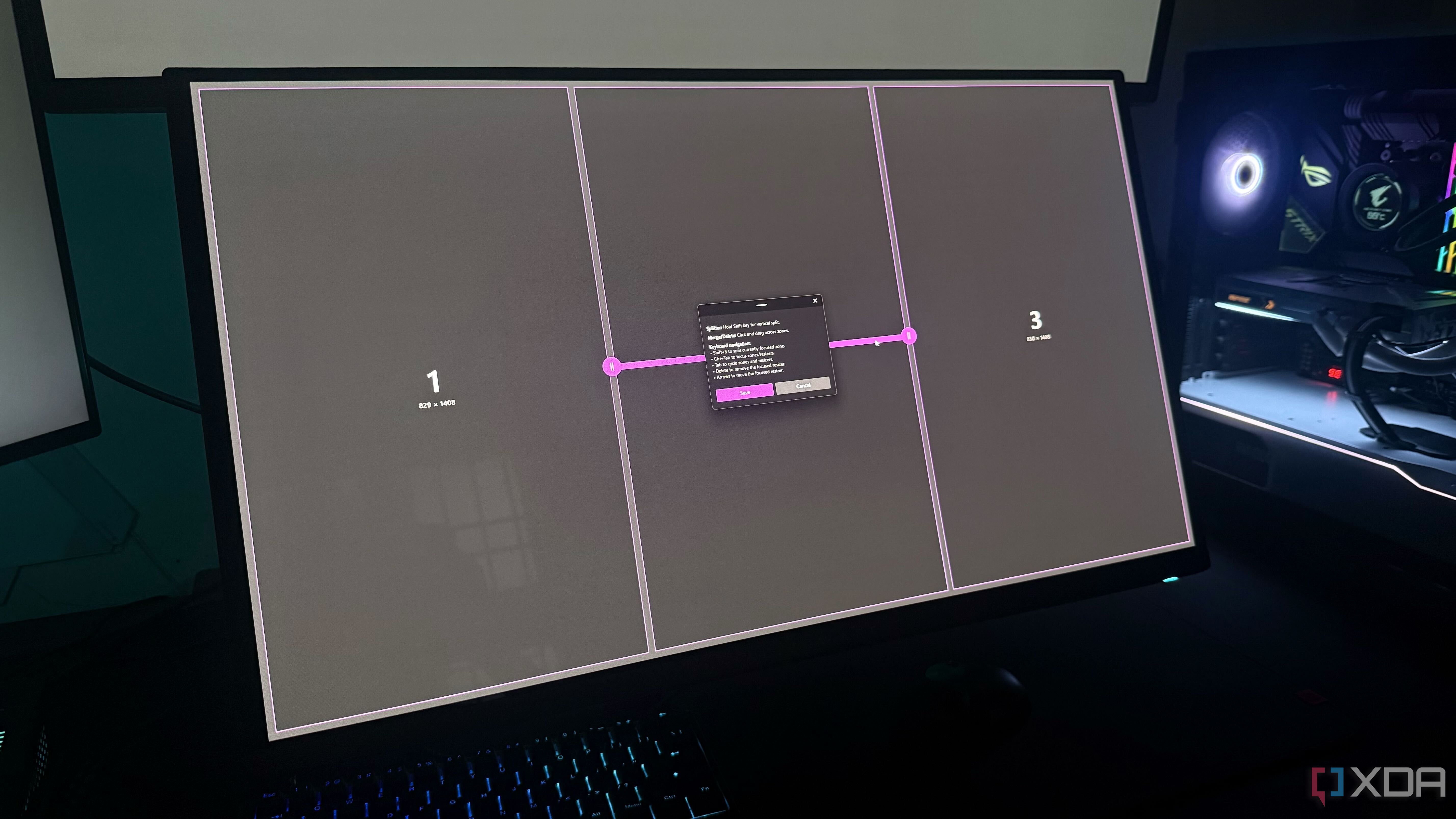
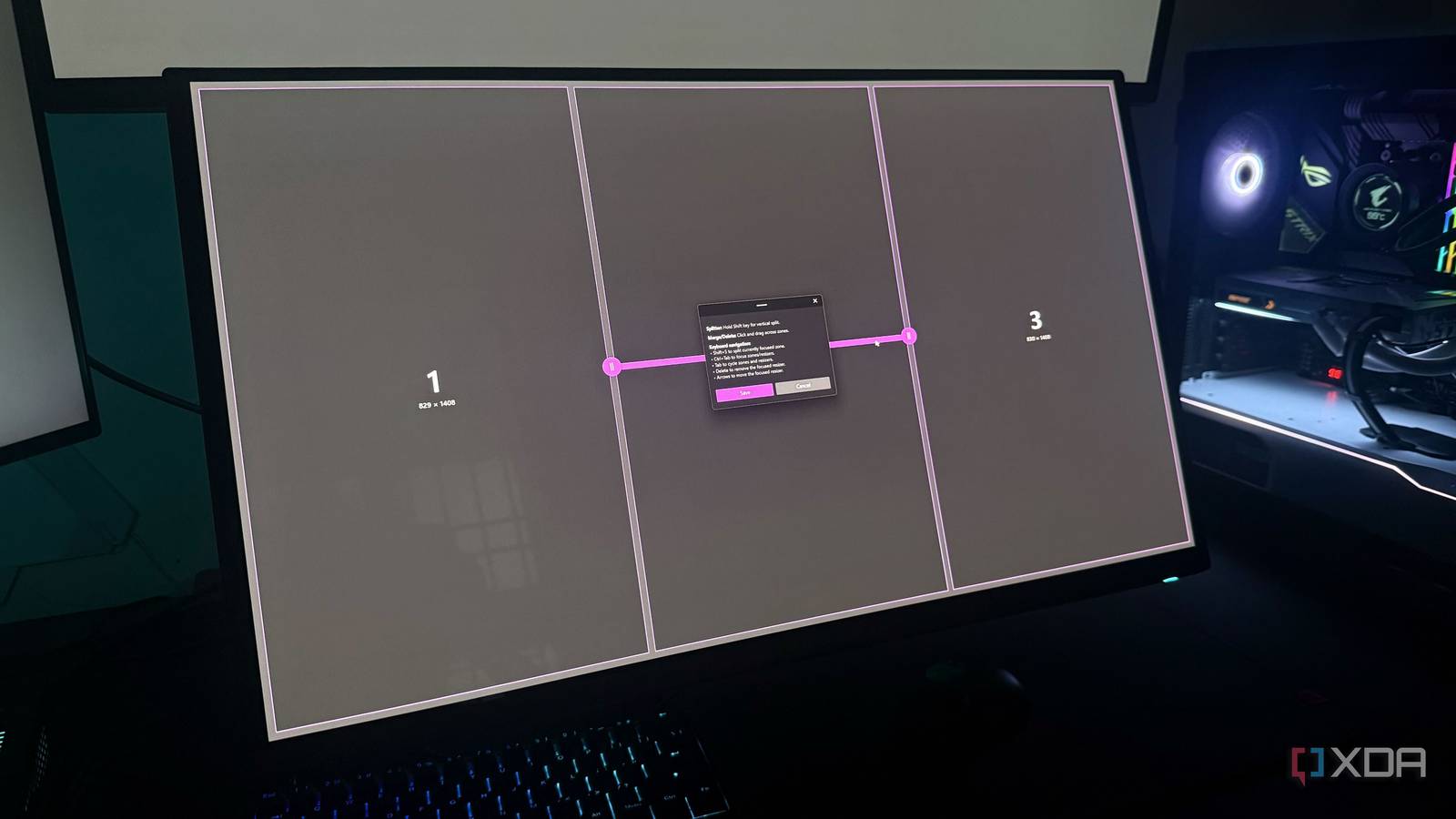
Windows 11 already includes Snap Layouts, but FancyZones takes window organization to the next level. With FancyZones, you can create custom grid layouts and snap windows into precise positions using drag-and-drop or keyboard shortcuts. Unlike the fixed snap layouts in Windows 11, FancyZones lets you define zones of any size and shape, making it ideal for ultrawide monitors or complex multitasking setups. Imagine being able to save a layout for your work apps—code editor, terminal, browser, and chat—and restore it instantly. Integrating this into Windows 11 would give power users the flexibility they crave without third-party tools. It's a small addition that would save countless hours of manual window repositioning every day.
2. PowerRename – Batch Renaming Made Simple
Renaming multiple files in Windows 11 is painfully slow. You either right-click each file or use the basic 'Rename' option that only appends numbers. PowerRename solves this with a powerful search-and-replace interface that supports regular expressions. Need to change all 'IMG_' prefixes to 'Vacation_'? Select the files, open PowerRename, type the pattern, and preview the results before applying. It also offers options like case changes, file extension filtering, and even undo. This feature belongs in File Explorer natively—just a right-click option that hides the complexity but supercharges renaming. For photographers, developers, or anyone managing large collections, it's an indispensable time-saver that should be just a click away.
3. Keyboard Manager – Remap Keys and Shortcuts
Windows 11 allows basic key remapping through Settings, but it's limited and buried. Keyboard Manager lets you remap individual keys or create custom shortcuts for any app. For example, you can swap Caps Lock with Ctrl, or remap Ctrl+C to copy in a non-standard program. You can even set app-specific shortcuts—so a certain key combination only works in your code editor. This is a godsend for users with ergonomic preferences or those switching between macOS and Windows. Making this a built-in feature would eliminate the need for third-party remapping tools and put control in the hands of every user who wants a more personalized keyboard experience. It's a straightforward utility that enhances productivity without adding complexity.
4. Peek – Quick File Previews Without Opening Apps
Windows 11 has a preview pane in File Explorer, but it's clunky and only works for certain file types. PowerToys Peek gives you a macOS-style quick look: select any file and press Ctrl+Space to see a large thumbnail, metadata, and even content preview for text, images, and folders. It works for PDFs, code files, and more—all without launching the associated app. This speeds up browsing dramatically: no more opening each file just to see what it contains. Imagine right-clicking a folder and Peek showing you its total size and a few top files. Adding this to Windows 11 would make File Explorer feel modern and responsive. It's a small enhancement with a big impact on daily workflow, especially for content creators and developers.
In conclusion, these four PowerToys features—FancyZones, PowerRename, Keyboard Manager, and Peek—represent the kind of smart, unobtrusive improvements that Windows 11 could easily absorb. They target real pain points without overwhelming average users, because they only activate when needed. By integrating these tools directly into the OS, Microsoft would acknowledge the needs of power users while keeping the interface clean. Until then, PowerToys remains an essential download for anyone who wants their Windows experience to be truly productive. Give it a try—you might wonder why these weren't built-in from the start.
Related Articles
- Microsoft Releases Earliest DOS Source Code to Public on 45th Anniversary
- Securing AI Agent Tool Calls: A Q&A on .NET's Agent Governance Toolkit
- 10 Key Insights: How Kotlin Developers Are Navigating AI-Powered Development
- Meta Unveils AI-Driven Configuration Safety System to Prevent Rollout Failures at Scale
- At 40, History Teacher Switches to Rust Programming — Career Change Documented in New Series
- 5 Essential Insights Into the True Nature of Code
- Modernizing Your Go Code with the New go fix Command
- 7 Hard Truths About Deploying AI Agents in Production, According to Datadog and T-Mobile Leaders